
Getting Started with CurtainUp!
CurtainUp is more than a collection of training pages. It gives every learner a personal training area where courses can be assigned, additional subjects can be explored, progress can be recorded, knowledge can be checked and certificates can be earned.
Training can be completed around rehearsals, performances and other work commitments. You can stop and return later without losing your progress. The portal also helps departments maintain consistent training standards and provides a clear record of completed training.
Quick Start
Your assigned courses are already waiting in your account. Follow these four steps to begin your training.
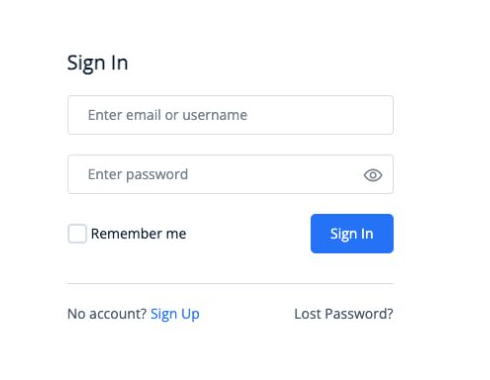 Select an image to enlarge it
- Check your emailAfter your account is created, CurtainUp will send an email to your registered address. Follow the instructions in the email to set your password. Check your junk or spam folder if it does not arrive.
- Log inEnter your registered email address or username and your password. Use the Lost Password link if you need to reset it.
- Open Enrolled CoursesOpen your dashboard and select Enrolled Courses to see the training assigned to you.
- Start your courseSelect the course and choose Start Course. If you have already begun, choose Continue.
Understand your dashboard
Your dashboard brings your assigned courses, current progress, completed training, quizzes and certificates together in one personal area.
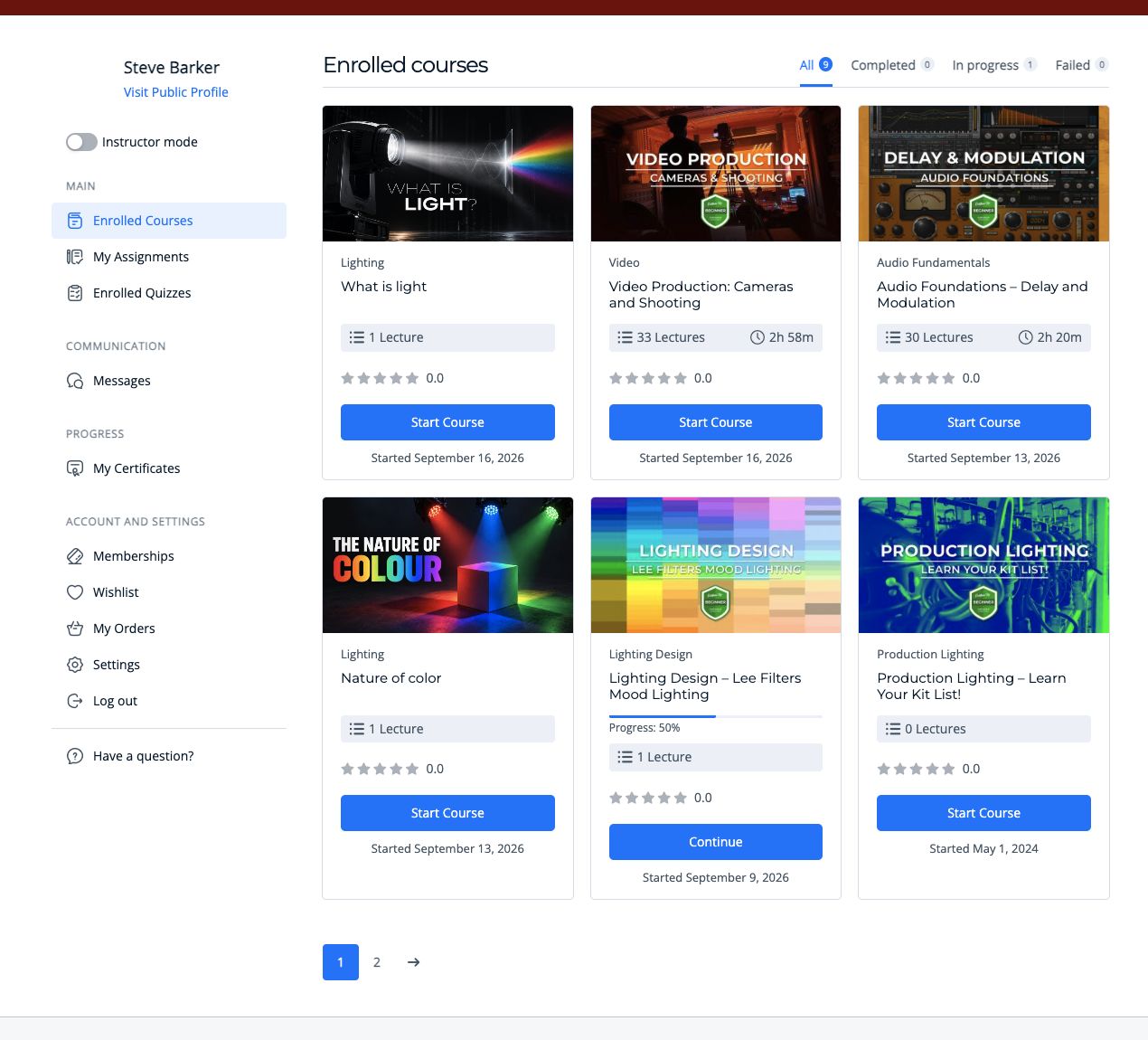 The learner dashboard and Enrolled Courses area
- Open Enrolled CoursesThis is the main area for courses that have been assigned to you or that you have joined yourself.
- Use the course filtersSwitch between All, Completed, In Progress and Failed to find the course you need.
- Check each course cardThe card can show the course subject, number of lessons, approximate duration, progress and start date.
- Use the account menuThe menu provides access to quizzes, certificates, messages, settings and logout.
Find assigned courses and explore more
Required courses will be added to your account, but you are also encouraged to explore useful training created for other departments.
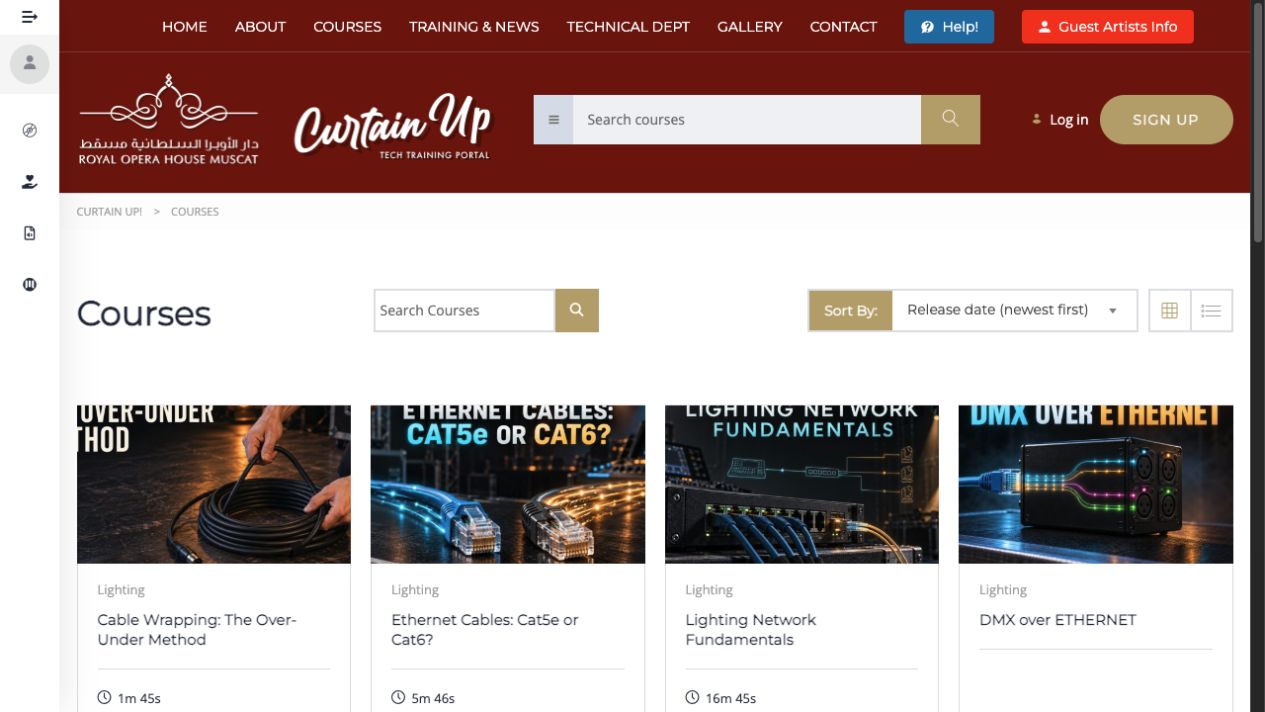 Browse and search the full course catalogue
- Find assigned trainingOpen Enrolled Courses in your dashboard. Courses required for your role or department will appear there.
- Browse all coursesOpen the Courses page to see the wider catalogue.
- Search or browseUse the search box, categories and sorting controls to find a subject that interests you.
- Read the course informationOpen a course to review its description, curriculum and estimated duration.
- Enrol yourselfJoin an additional course, then return to Enrolled Courses to begin it.
Use the course player
The course player keeps lessons, videos, supporting material, progress and quizzes together in a clear sequence.
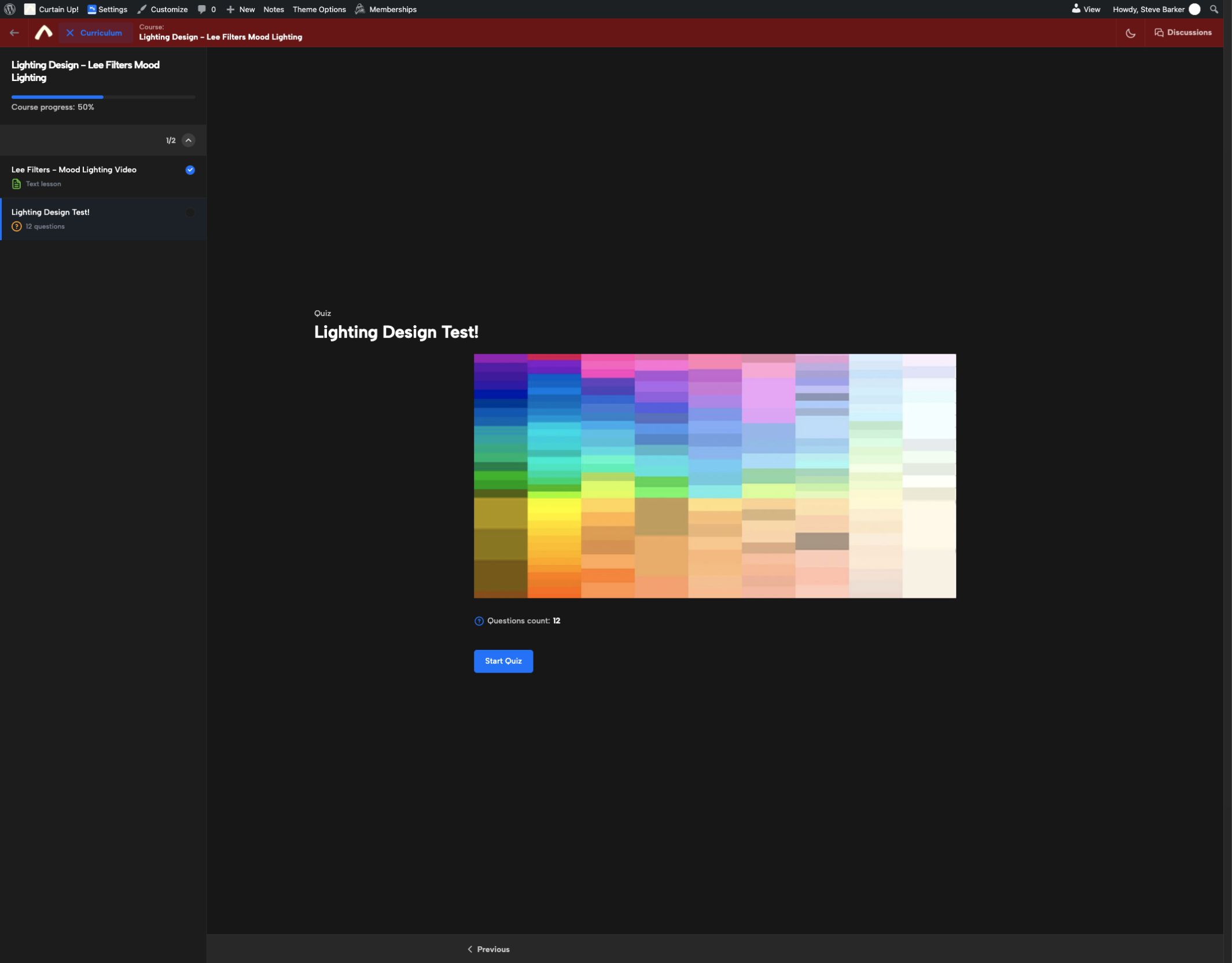 Course curriculum, progress and learning content
- Open the curriculumThe curriculum panel shows the course sections, lessons and quizzes.
- Follow the recommended orderSelect a lesson and complete its video, text or supporting material.
- Mark the lesson completeUse the completion control where it is provided. Simply opening a lesson may not record it as complete.
- Move through the courseUse the previous and next controls or select the next item from the curriculum.
- Return laterLeave the course when necessary and use Continue from your dashboard when you are ready to resume.
Complete quizzes and retake them when needed
Some courses contain a multiple-choice quiz. A course may require a particular percentage before it is passed.
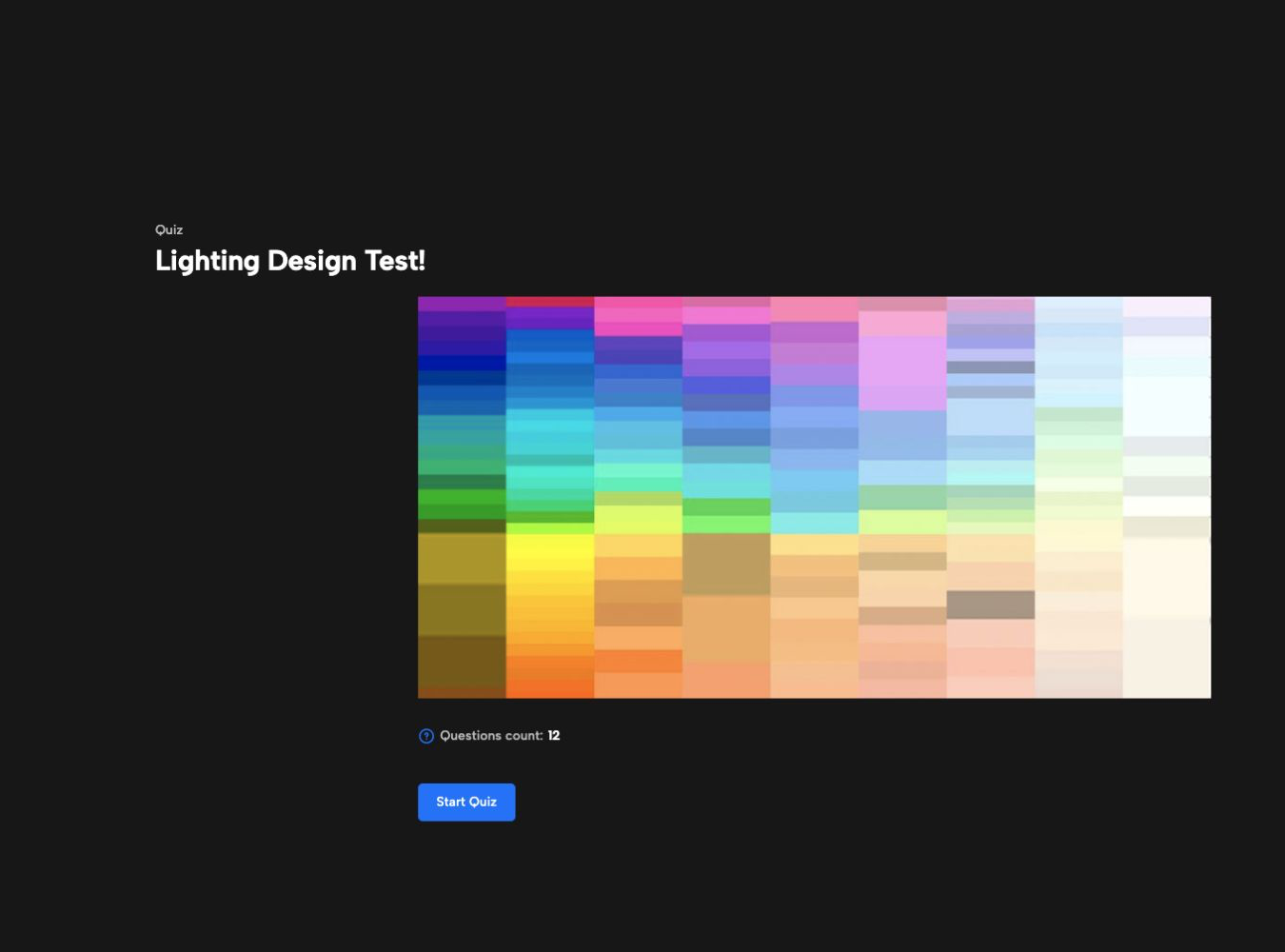 A quiz ready to begin in the course player
- Start the quizOpen it from the curriculum and check the number of questions before you begin.
- Answer each questionRead the question carefully and select the most appropriate answer.
- Review and submitCheck your answers before submitting the quiz.
- Check your resultYour result will show whether you reached the required pass percentage.
- Review and retakeIf you do not pass, return to the relevant lessons and use Retake Quiz when you are ready to try again.
Check your progress
Progress indicators help you see what has been completed and what still requires attention.
The dashboard shows new, active and completed training
- Open Enrolled CoursesFind the course you want to check.
- Read the progress indicatorThe percentage and progress bar show how much of the course has been recorded as complete.
- Continue the courseOpen it to identify incomplete lessons or quizzes.
- Complete the remaining requirementsFinish outstanding lessons and pass the quiz where required.
- Confirm the updated statusReturn to the dashboard and check that the course status and percentage have changed.
View your departmental certificates
Eligible courses can issue a certificate after all required lessons and quizzes have been completed.
 CurtainUp uses departmental certificate designs
- Complete the courseFinish all required lessons and learning material.
- Pass the quizReach the required percentage where the course includes a pass mark.
- Open My CertificatesUse the Progress area of your dashboard menu.
- View or download the certificateSave a copy or print it if required.
- Check your nameYour certificate uses the name stored in your CurtainUp profile. Make sure it is correct.
Use CurtainUp on a mobile phone
CurtainUp can be used on a phone, although a desktop or laptop provides the clearest experience for longer courses and quizzes.
On a phone, the same content rearranges into a narrower layout
- Open the site menuUse the menu icon to access navigation on a smaller screen.
- Open your accountThe dashboard menu may be collapsed until you select it.
- Scroll through the curriculumCourse navigation and lesson content may appear one above the other.
- Rotate the phone when usefulLandscape orientation can make wide content and videos easier to view.
- Use full-screen videoThis can make lesson demonstrations easier to follow.
- Choose a larger screen for detailed workUse a desktop or laptop for longer quizzes and detailed technical material where possible.
Get help
Ask for support if you cannot access your account, cannot see an assigned course or believe your progress has not updated correctly.
The Lost Password link can restore account access
- Check your accountMake sure you are signed into the correct CurtainUp account.
- Refresh and try againIf necessary, try another browser or device.
- Reset your passwordUse Lost Password if you cannot sign in.
- Ask your Head of DepartmentContact the course creator about course content or a course that should have been assigned to you.
- Contact StephenFor account or website problems, contact Stephen, CurtainUp Administrator, through the contact form.
Your training, progress and certificates in one place
Sign in to view your assigned courses, continue your current training or explore something new.
Open My Dashboard